STICPAY is a platform designed to provide users with a simple, secure, and convenient way to access digital asset and payment services.
To use the platform, users are required to complete the registration process and verify their identity through KYC (Know Your Customer) verification.
In this guide, we will walk you through the entire process, from creating a STICPAY account to successfully completing KYC verification, step by step.
StickPay is a platform designed to provide users with a secure and convenient way to access digital financial services.
To ensure a safe and compliant service environment, StickPay requires users to complete a KYC (Know Your Customer) verification process after registration. Once the verification is successfully completed, users can access and enjoy the full range of services available on the platform.
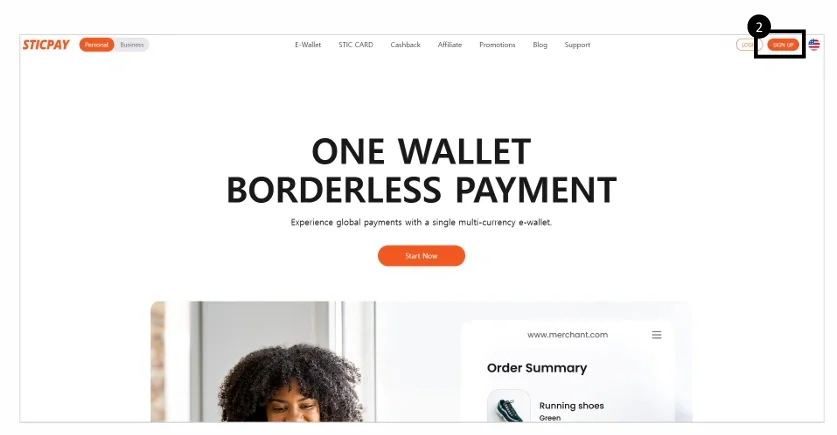
1. Visit www.sticpay.com

2. Click the [SIGN UP] button at the top right of the website
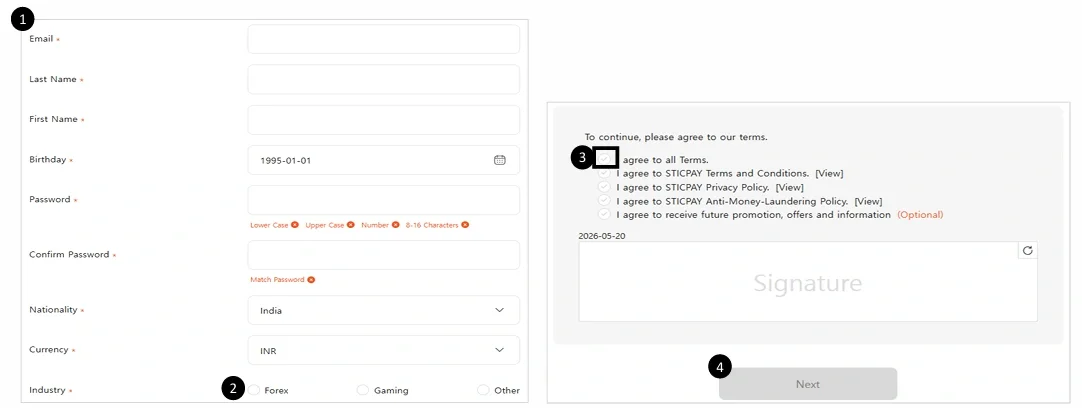
1. Enter all information including name, email, and password in English

2. Select your 'Industry’

3. Agree to all terms and sign in the blank field using your mouse

4. Click [Next]
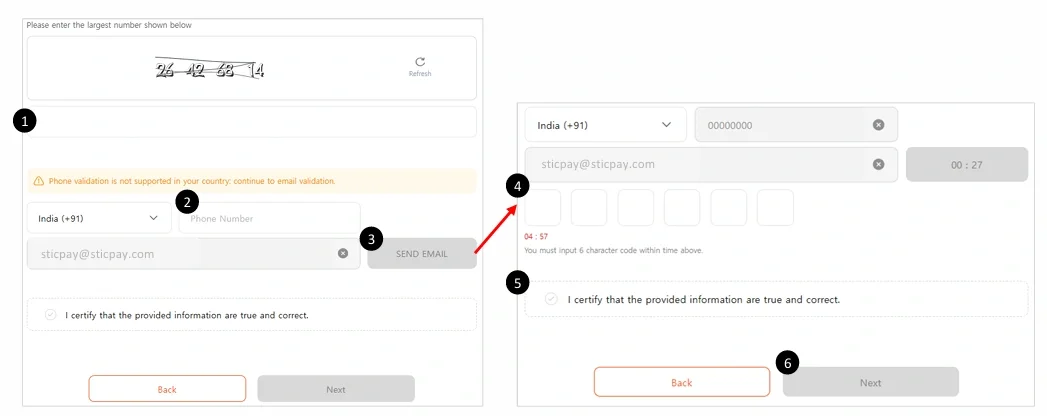
1. Enter the largest number among the 4 numbers shown on screen

2. Enter your mobile number

3. Click the activated [SEND EMAIL] button to send the verification code to your email

4. Enter the 6-digit verification code received in your email

5. Check to confirm that all entered information is correc

6. Click [Next]
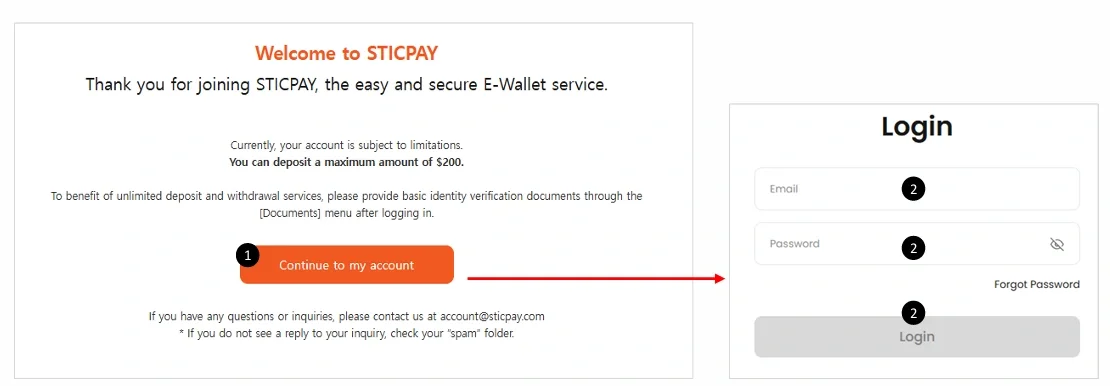
1. Click [Continue to my account]

2. Enter your ID and password, then click [Login]
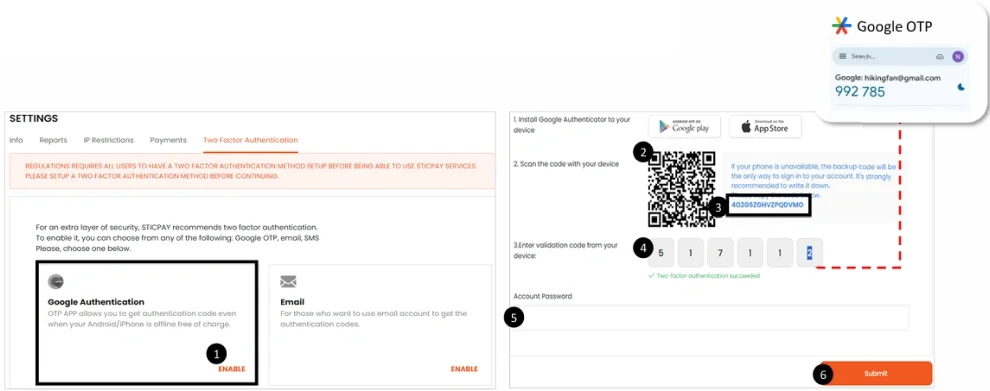
1. Log in → Go to Two Factor Authentication in Mypage→ Select authentication method → Click [ENABLE]
* Android users: search for 'Google OTP' on the Play Store. iPhone users: search on the App Store. Download and install theapp.

2. OTP Registration Method 1) Open Google OTP app → Tap [+] at the bottom → Scan QR Code → Scan the QR code with your phone camera

3. OTP Registration Method 2) Open Google OTP app → Tap [+] at the bottom → Enter a setup key → Enter the 16-digit code shown on screen

4. Enter the 6-digit verification code generated in the app

5. Enter your STICPAY account password

6. Click [Submit] to complete the setup
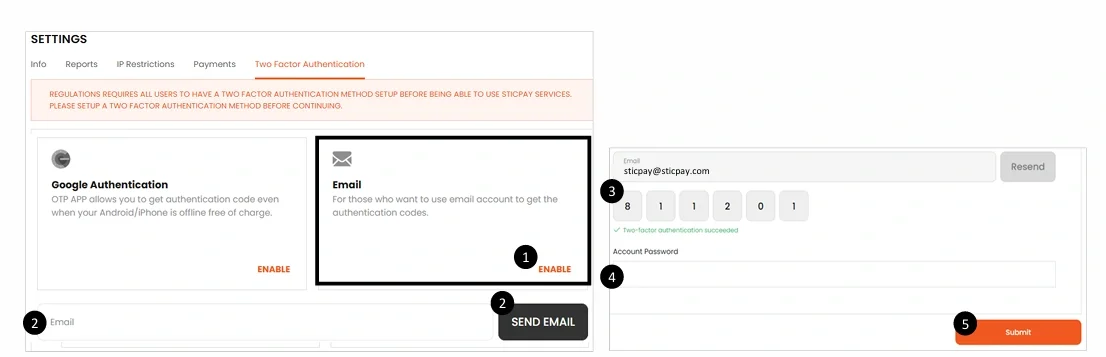
1. Log in → Go to Two Factor Authentication in Mypage → Select authentication method → Click [ENABLE]

2. Enter the email address for authentication and click [SEND EMAIL]

3. Enter the 6-digit verification code sent to your email

4. Enter your STICPAY account password

5. Click Click [Submit] to complete the setup
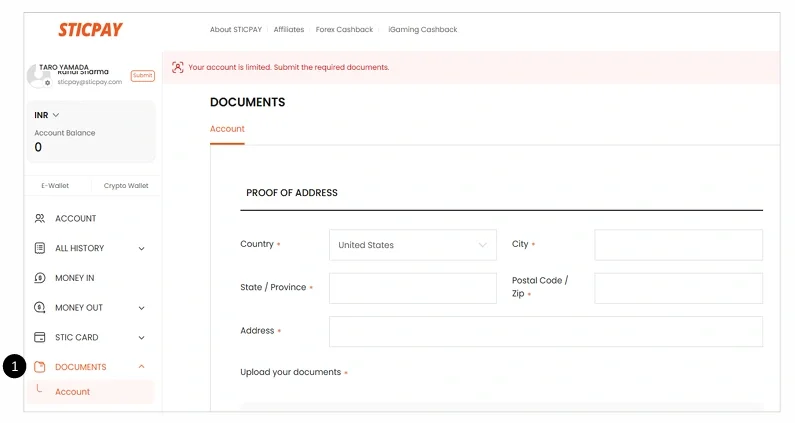
1. After logging in, click [Documents] → [Account] in the left menu
 - URL: https://mypage.sticpay.com/document/account/new_custome
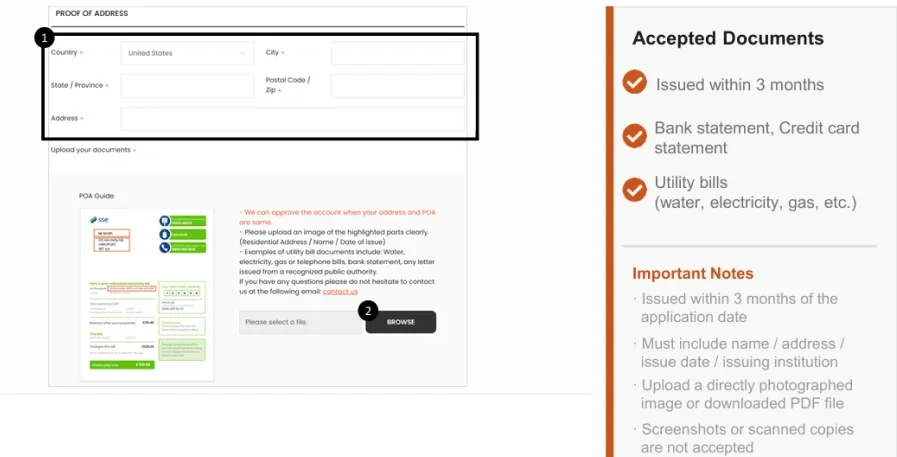
1. Enter the information exactly as shown on your proof of address, in English

2. Click [BROWSE] to select the file to upload

3. Scroll down to proceed to PLE upload
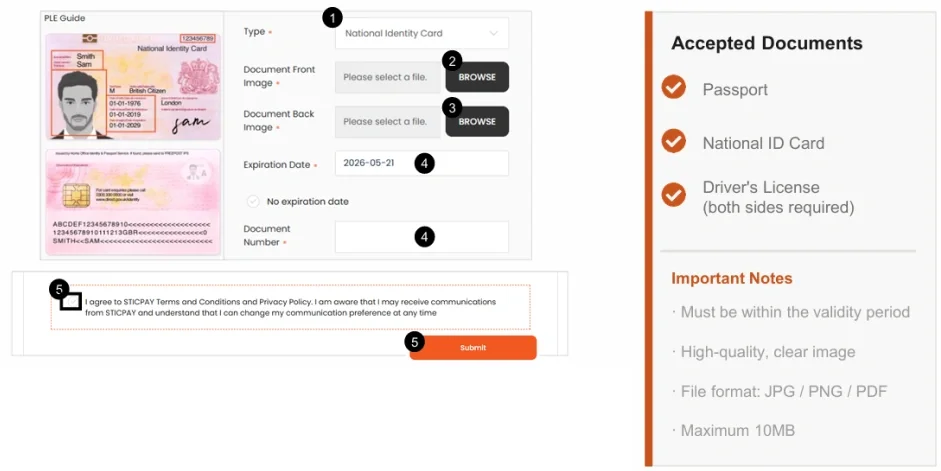
1. Select the Document Type: 1) National Identity Card  2) Driver's License  3) Passport

2. Click [BROWSE] to select the file to upload (Front)

3. Click [BROWSE] to select the file to upload (Back)  * For Passport, upload one side only

4. Enter the expiry date and Document Number

5. Agree to the terms and click [Submit]
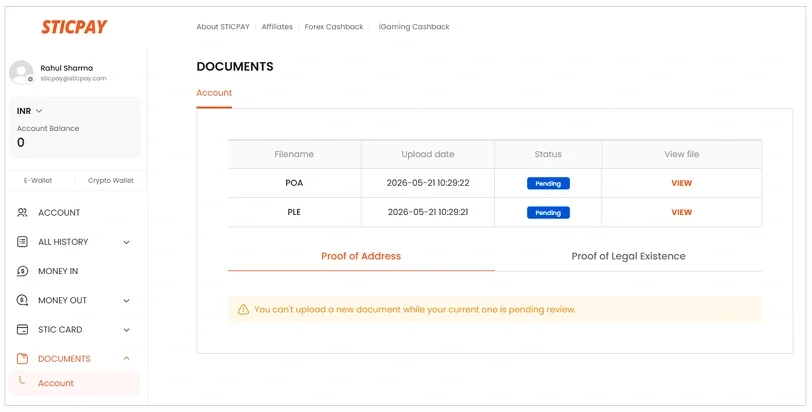
1. Your application may be rejected if the documents are invalid or for other reasons.
The review result will be notified via email.
* Review period: 2–3 businessdays